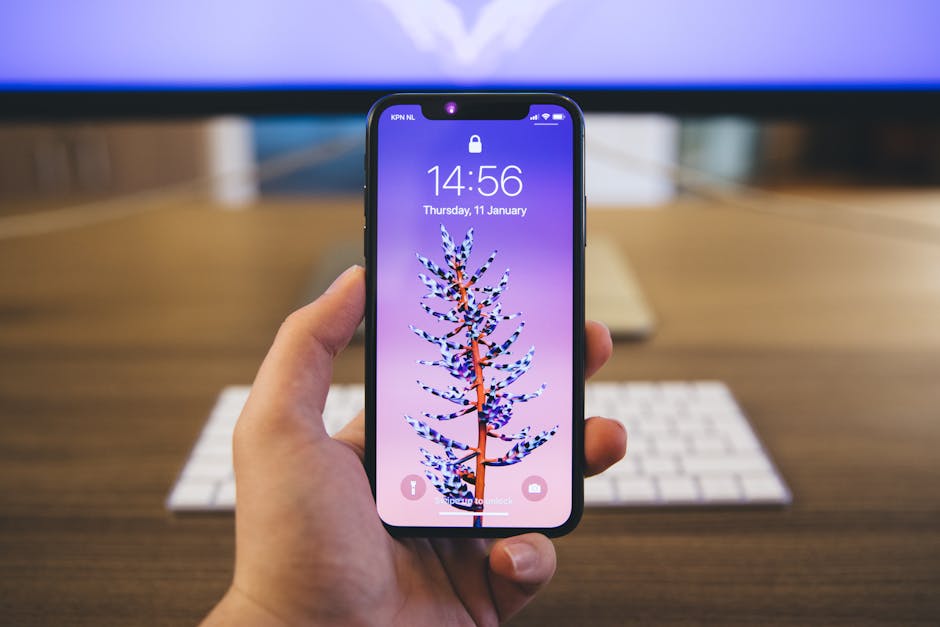
Siri, Apple’s intelligent virtual assistant, can simplify your life by helping you manage tasks, answer questions, and control your iPhone with just your voice. Whether you’re a new iPhone user or simply haven’t utilized Siri yet, enabling it is straightforward. This guide will walk you through the steps to set up and customize Siri on your iPhone for optimal performance and convenience. Learn how to activate Siri and tailor it to your specific needs.
Understanding Siri and Its Capabilities
Siri is much more than just a voice assistant. It’s a powerful tool integrated into the iOS ecosystem that can perform a wide range of functions, from setting alarms and sending messages to controlling smart home devices and providing information on virtually any topic. By enabling Siri, you unlock a hands-free way to interact with your iPhone.
Before enabling Siri, it’s helpful to understand its potential. Think about the everyday tasks you could automate or simplify using voice commands. From playing your favorite music to getting directions, Siri can significantly enhance your iPhone experience.
Step-by-Step Guide to Enabling Siri
Enabling Siri on your iPhone is a simple process that can be completed in just a few minutes. Follow these steps to get started:
- Open the Settings App: Locate and tap the Settings icon on your iPhone’s home screen. This is usually represented by a gear icon.
- Navigate to Siri & Search: Scroll down the Settings menu until you find the option labeled “Siri & Search” and tap on it.
- Enable “Listen for ‘Hey Siri'”: This option allows you to activate Siri hands-free by simply saying “Hey Siri.” Toggle the switch next to “Listen for ‘Hey Siri'” to the on position (green).
- Enable “Press Side Button for Siri”: This option allows you to activate Siri by pressing and holding the side button (or the Home button on older iPhone models). Toggle the switch next to “Press Side Button for Siri” (or “Press Home for Siri”) to the on position (green).
- Siri Setup Prompts: After enabling either of the above options, your iPhone will likely prompt you to complete a short setup process. This involves repeating a few phrases to help Siri recognize your voice. Follow the on-screen instructions carefully.
- Enable Siri When Locked: For added convenience, enable Siri even when your iPhone is locked. You can find this option within the “Siri & Search” settings.
Customizing Siri for Optimal Performance
Once you’ve enabled Siri, you can customize its settings to better suit your needs and preferences. Here are some key customization options:
Language and Voice
Language: You can change the language Siri uses to communicate with you. This is useful if you speak multiple languages or want to practice a new language. To change the language, go to “Siri & Search” in Settings, then tap “Language.” Select your preferred language from the list.
Siri Voice: Choose the voice you prefer for Siri. Navigate to “Siri Voice” within the “Siri & Search” settings. You can select different accents and genders.
Feedback and Privacy
Voice Feedback: Control when Siri provides voice feedback. You can choose to have Siri always respond verbally, only when using “Hey Siri,” or control with Ring Switch.
My Information: Ensure Siri knows who you are by setting your contact card as “My Information.” This helps Siri personalize its responses and access your contacts. Go to “My Information” in the “Siri & Search” settings and select your contact from the list.
Siri Suggestions: Siri can provide suggestions based on your usage patterns. You can customize which apps Siri can learn from and offer suggestions for. Review the “Siri Suggestions” section in Settings to manage these preferences.
App Integration
Siri integrates with many third-party apps, allowing you to control them with your voice.
App Support: Check which apps support Siri by going to “Siri & Search” and scrolling down to the list of apps. Enable Siri for the apps you want to control with your voice.
Troubleshooting Common Siri Issues
Sometimes, you might encounter issues with Siri. Here are some common problems and how to fix them:
Siri Not Responding to “Hey Siri”: Ensure “Listen for ‘Hey Siri'” is enabled in Settings. Make sure your iPhone’s microphone is not obstructed. Try retraining Siri to recognize your voice by going through the “Hey Siri” setup again. Check your internet connection, as Siri requires an active connection to function.
Siri Not Understanding Your Commands: Speak clearly and slowly. Ensure you are using the correct syntax for your commands. Try rephrasing your request. Make sure Siri’s language is set to your preferred language.
Siri Crashing or Freezing: Restart your iPhone. Update to the latest version of iOS. Reset Siri settings by toggling Siri off and then back on in Settings.
Privacy Concerns: Review Apple’s privacy policy regarding Siri data. Disable Siri if you are uncomfortable with data collection. Limit Siri’s access to certain apps or data.
Advanced Siri Tips and Tricks
Once you’re comfortable with the basics, explore these advanced tips and tricks to get even more out of Siri:
Use Siri Shortcuts: Create custom shortcuts to automate complex tasks. Use the Shortcuts app to design and implement these shortcuts.
Control Smart Home Devices: Integrate Siri with your smart home devices to control lights, thermostats, and more. Make sure your devices are compatible with HomeKit and properly configured.
Set Reminders and Alarms: Use Siri to quickly set reminders and alarms without having to manually navigate through the Clock or Reminders app.
Send Messages and Make Calls: Dictate messages and make phone calls hands-free using Siri.
Get Information: Ask Siri questions about weather, sports scores, news, and more.
Translate Languages: Instantly translate phrases into different languages using Siri’s translation feature.
Enabling Siri on your iPhone opens a world of possibilities, making your daily tasks more efficient and convenient. By following this guide, you can easily set up Siri, customize it to your preferences, and troubleshoot any issues you might encounter. Start exploring Siri’s capabilities today and discover how it can enhance your iPhone experience. Take control of your digital life with the power of your voice!