
If you’re wondering how to connect Shokz to iPhone, rest assured the process is simple and straightforward, allowing you to quickly enjoy your favorite audio with these innovative bone conduction headphones. This guide will walk you through the steps, troubleshooting tips, and best practices for a seamless connection.
Understanding Bluetooth Pairing for Shokz and iPhone
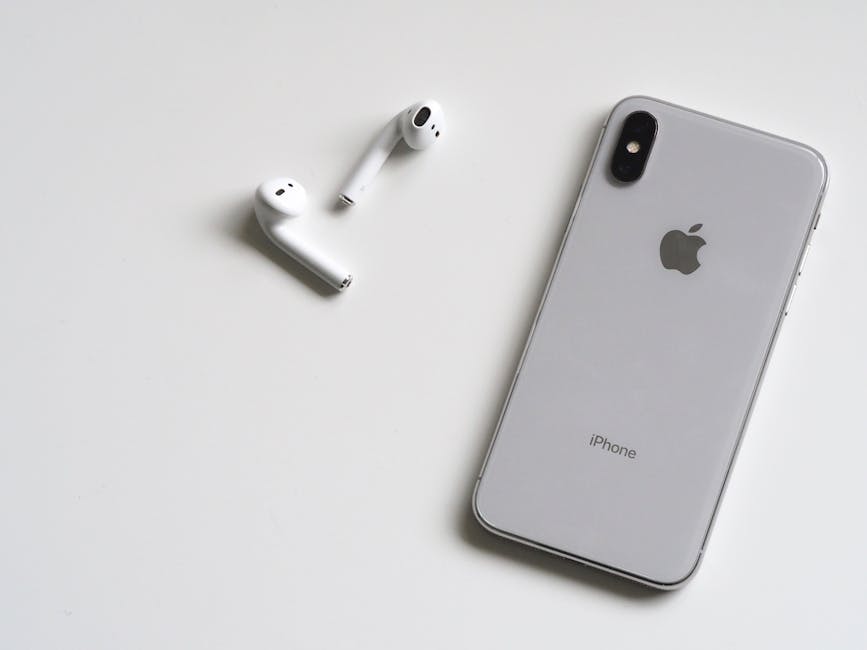
Bluetooth pairing is the foundation for connecting your Shokz headphones to your iPhone. Both devices use Bluetooth technology to establish a wireless connection, allowing audio to stream seamlessly. Before you begin, make sure both your Shokz and iPhone are charged and ready to go.
Step-by-Step Guide: Connecting Your Shokz to iPhone
Follow these simple steps to pair your Shokz headphones with your iPhone:
- Put Your Shokz in Pairing Mode: Power off your Shokz headphones. Then, press and hold the power button until the LED indicator flashes red and blue. This indicates that the headphones are in pairing mode, ready to connect to a new device.
- Enable Bluetooth on Your iPhone: Navigate to the Settings app on your iPhone. Tap on “Bluetooth” and toggle the switch to the “On” position. Your iPhone will begin searching for available Bluetooth devices.
- Select Your Shokz Headphones: After a few seconds, your Shokz headphones should appear in the list of available devices on your iPhone. The name will typically include “Shokz” followed by the model name (e.g., “Shokz OpenRun”). Tap on the name of your Shokz headphones to initiate the pairing process.
- Confirm Pairing (If Prompted): Your iPhone may prompt you to confirm the pairing with your Shokz headphones. If so, tap “Pair” to complete the connection.
- Connection Confirmation: Once paired, the LED indicator on your Shokz headphones will typically flash blue, indicating a successful connection. Your iPhone will also show that your Shokz headphones are “Connected” in the Bluetooth settings.
Troubleshooting Connection Issues: What to Do When Things Go Wrong
Even with a straightforward process, sometimes issues can arise when trying to pair your Shokz with your iPhone. Here are some common troubleshooting steps:
Ensure Bluetooth is Enabled: Double-check that Bluetooth is turned on in your iPhone’s settings. Sometimes, it can accidentally be turned off.
Headphones Aren’t in Pairing Mode: If your Shokz aren’t showing up on your iPhone, make sure they’re actually in pairing mode (flashing red and blue). Repeat step 1 from the previous section if needed.
Distance Matters: Ensure your Shokz headphones are within close proximity to your iPhone during the pairing process. Bluetooth connections can be affected by distance and obstacles.
Forget the Device and Re-pair: If you’ve previously paired your Shokz with your iPhone, but are now experiencing issues, try “forgetting” the device and re-pairing. To do this, go to the Bluetooth settings on your iPhone, tap the “i” icon next to your Shokz headphones, and select “Forget This Device.” Then, repeat the pairing process from the beginning.
Restart Your Devices: A simple restart of both your Shokz headphones and your iPhone can often resolve connection problems. Turn both devices off completely, wait a few seconds, and then turn them back on.
Check for Interference: Other Bluetooth devices or electronic equipment can sometimes interfere with the pairing process. Try moving to a different location or turning off other nearby Bluetooth devices.
Update Firmware: Check if there are any firmware updates available for your Shokz headphones. Updating to the latest firmware can often resolve compatibility issues and improve performance. You can usually find firmware updates on the Shokz website or through their mobile app (if applicable). .
Maximizing Your Shokz and iPhone Experience
Once you’ve successfully connected your Shokz to your iPhone, you can take advantage of several features to enhance your audio experience.
Adjusting Volume: Control the volume directly from your iPhone using the volume buttons or the Control Center. You can also adjust the volume using the buttons on your Shokz headphones (if equipped).
Using Siri: With your Shokz connected, you can use Siri to control your iPhone hands-free. Simply activate Siri by pressing and holding the multi-function button on your Shokz (if equipped) or by saying “Hey Siri” (if enabled).
Answering Calls: When you receive a phone call, you can answer it directly through your Shokz headphones by pressing the multi-function button. You can also end calls using the same button.
Listening to Music and Podcasts: Enjoy your favorite music, podcasts, and audiobooks with the convenience of wireless audio. Control playback (play, pause, skip) using the buttons on your Shokz headphones (if equipped) or directly from your iPhone.
Customizing EQ Settings: Some Shokz models offer customizable EQ settings, allowing you to tailor the sound to your preferences. Check the Shokz app (if applicable) or your iPhone’s audio settings for EQ options.
Why Choose Shokz Headphones for Your iPhone?
Shokz headphones offer a unique and compelling listening experience, particularly when paired with an iPhone. Here are some key advantages:
Bone Conduction Technology: Shokz headphones use bone conduction technology, which transmits sound through the bones of your skull, leaving your ears open to hear ambient sounds. This is ideal for activities like running, cycling, or walking, where situational awareness is important.
Comfort and Stability: Shokz headphones are designed to be lightweight and comfortable, even during extended use. The open-ear design also ensures that the headphones stay securely in place, even during vigorous activities.
Sweat and Water Resistance: Many Shokz models are sweat and water-resistant, making them ideal for workouts and outdoor activities.
Long Battery Life: Shokz headphones typically offer long battery life, allowing you to enjoy hours of audio playback on a single charge.
Awareness of Surroundings: This is crucial for safety. You can listen to music while still being aware of traffic, pedestrians, and other potential hazards.
Keeping Your Shokz Headphones Connected
Maintaining a stable connection between your Shokz headphones and your iPhone is essential for uninterrupted listening. Here are some tips to keep your devices connected:
Keep Bluetooth Enabled: Make sure Bluetooth is always enabled on your iPhone when you want to use your Shokz headphones.
Charge Regularly: Keep both your Shokz headphones and your iPhone charged to prevent unexpected disconnections due to low battery.
Avoid Obstructions: Minimize obstructions between your Shokz headphones and your iPhone, such as walls or large objects.
- Update Your iPhone’s iOS: Regularly update your iPhone’s operating system (iOS) to ensure compatibility with the latest Bluetooth standards and features. .
Alternative Ways to Connect: Exploring Options
While Bluetooth is the primary method for connecting Shokz to iPhone, there might be alternative connection methods depending on the specific Shokz model. Some older models might support a wired connection via a 3.5mm audio jack, but this is less common with newer wireless models. Check your Shokz headphones’ documentation to see if any alternative connection options are available.
How to Easily Connect Shokz to iPhone: A Recap
Connecting your Shokz to iPhone is a simple process that unlocks a world of wireless audio freedom. By following the steps outlined in this guide, you can quickly and easily pair your devices and enjoy your favorite music, podcasts, and audiobooks with the unique benefits of bone conduction technology. Remember to troubleshoot common issues by checking Bluetooth settings, ensuring proper pairing mode, and restarting devices when necessary. Enjoy the open-ear listening experience that Shokz provides! Remember to explore other and find the perfect fit for your lifestyle.
Related Articles
- How to Scan Documents on iPhone: A Comprehensive Guide
- How to Close All Tabs on iPhone: A Comprehensive Guide
- How to Recover Permanently Deleted Messages on Messenger: A Comprehensive Guide