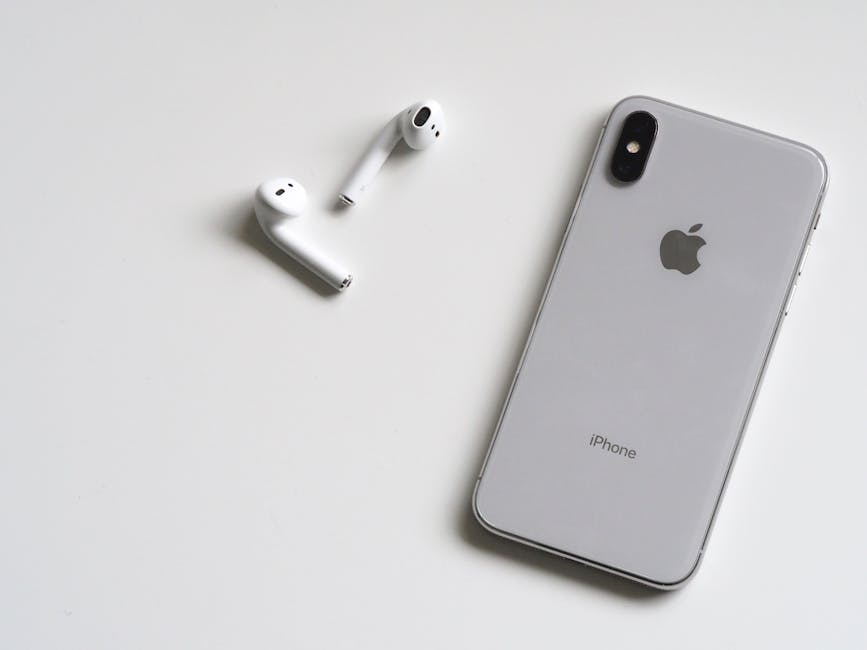

Learning how to pair AirPods to Android devices is a straightforward process, despite AirPods being primarily designed for Apple products. While you won’t get all the seamless integration that you would with an iPhone, using your AirPods with an Android phone or tablet is still a convenient way to enjoy wireless audio. This guide will walk you through the steps to successfully connect your AirPods to your Android device and troubleshoot any potential issues.
Pairing AirPods to Your Android Phone: Step-by-Step
The process of connecting your AirPods to an Android device is similar to pairing any other Bluetooth device. The key is putting your AirPods into pairing mode. Follow these steps for successful pairing.
- Enable Bluetooth on Your Android Device: Navigate to your Android device’s settings. Then, find the “Connections” or “Bluetooth” section (the exact wording might vary depending on your device manufacturer, such as Samsung, Google Pixel, or OnePlus). Make sure Bluetooth is toggled on.
- Put Your AirPods in Pairing Mode: Place both AirPods in their charging case. Open the lid of the case. Locate the small setup button on the back of the AirPods case. Press and hold this button until the status light inside the case starts flashing white. This indicates that your AirPods are in pairing mode and ready to connect.
- Select AirPods from Available Devices: On your Android device, a list of available Bluetooth devices should appear. Look for your AirPods in the list (they will likely be identified as “AirPods” or “Apple AirPods”). Tap on the AirPods entry to initiate the pairing process.
- Confirm the Pairing: Your Android device may prompt you to confirm the pairing. Tap “Pair” or “OK” to complete the connection. Once paired, the status light inside the AirPods case will turn green (or off), and your AirPods should be connected to your Android device.
- Test the Connection: Play some audio or make a phone call to confirm that your AirPods are working correctly with your Android device. You can also adjust the volume using your Android device’s volume controls. Consider exploring for a better listening experience.
Understanding Limited Functionality on Android
While you can successfully use AirPods with Android, it’s important to understand that certain features are exclusive to Apple devices.
Automatic Device Switching: AirPods are designed to seamlessly switch between Apple devices linked to the same iCloud account. This feature does not work on Android. You will need to manually disconnect and reconnect your AirPods each time you want to switch between your Android device and an Apple device.
“Hey Siri” Voice Activation: The “Hey Siri” voice assistant feature is not available when using AirPods with an Android device. You will not be able to use voice commands to control your AirPods or your Android device through Siri.
Battery Information: While some third-party apps can provide estimated battery levels for your AirPods, the native battery widget available on iOS is not accessible on Android. You’ll need to rely on alternative methods, like third-party apps, to check the battery status.
Customizable Controls: The ability to customize the double-tap or force sensor actions on your AirPods is primarily controlled through iOS settings. You might find limited customization options through third-party apps on Android, but they may not offer the same level of control as on an iPhone or iPad.
Troubleshooting AirPods Connection Issues on Android
Sometimes, you might encounter issues when trying to pair or use your AirPods with an Android device. Here are some common problems and how to fix them:
AirPods Not Appearing in the Bluetooth List
Ensure AirPods are in Pairing Mode: Double-check that you have correctly put your AirPods into pairing mode by pressing and holding the setup button on the case until the light flashes white. Restart Bluetooth: Turn off Bluetooth on your Android device and then turn it back on. This can sometimes refresh the list of available devices. Restart Your Android Device: A simple restart can often resolve temporary software glitches that might be preventing your AirPods from being detected. Check for Interference: Bluetooth signals can be affected by interference from other wireless devices or physical obstructions. Try moving closer to your Android device and away from potential sources of interference like microwaves or other Bluetooth devices.
AirPods Connect But No Sound
Check Volume Levels: Make sure the volume on both your Android device and your AirPods is turned up. Select AirPods as Audio Output: Go to your Android device’s Bluetooth settings and make sure that your AirPods are selected as the audio output device. Sometimes, the device might default to the internal speakers or another connected Bluetooth device. Clean Your AirPods: Debris or earwax buildup can sometimes affect the audio quality or prevent sound from being transmitted properly. Gently clean your AirPods using a soft, dry cloth. Unpair and Re-pair: Try unpairing your AirPods from your Android device and then re-pairing them following the steps outlined earlier. This can sometimes resolve connection issues.
Poor Audio Quality or Intermittent Connection
Move Closer to Your Device: Bluetooth range can be limited. Try moving closer to your Android device to improve the signal strength. Check for Software Updates: Make sure your Android device is running the latest software updates. Updates often include bug fixes and performance improvements that can address Bluetooth connectivity issues. Reset Your AirPods: If you’re still experiencing problems, you can try resetting your AirPods. To do this, place the AirPods in their charging case, close the lid, wait 30 seconds, then open the lid. Press and hold the setup button on the back of the case until the status light flashes amber and then white. This will reset your AirPods to their factory settings.
Third-Party Apps to Enhance Your AirPods Experience on Android
While the native experience of using AirPods with Android is limited, several third-party apps can help bridge the gap and provide additional functionality. These apps often offer features like battery level monitoring, customizable controls, and automatic pausing when you remove an AirPod from your ear.
AirBattery: This app displays a pop-up notification showing the battery levels of your AirPods and the charging case. Assistant Trigger: This app allows you to customize the double-tap or force sensor actions on your AirPods to perform various tasks on your Android device. MaterialPods: A clean and modern app that displays battery information and provides customizable controls for your AirPods.
Remember to grant the necessary permissions to these apps for them to function correctly. Always review the app’s privacy policy before installing it to ensure that your data is protected. Consider exploring if you want alternatives with similar features.
Benefits of Using AirPods with Android
Despite the limitations, there are still several benefits to using AirPods with your Android device:
Wireless Convenience: Enjoy the freedom of wireless audio without tangled cords. Portability: AirPods are small and lightweight, making them easy to carry around. Decent Sound Quality: AirPods offer good sound quality for everyday listening. Microphone for Calls: Use your AirPods for making phone calls or video conferencing on your Android device. Familiarity: If you’re already an AirPods user, you can continue to use them with your Android device without having to purchase a separate set of headphones.
Alternatives to AirPods for Android Users
If you’re looking for wireless earbuds that offer a more seamless experience with Android, consider these alternatives:
Google Pixel Buds: These earbuds are specifically designed for Android and offer features like Google Assistant integration and real-time translation. Samsung Galaxy Buds: These earbuds provide excellent sound quality and integration with Samsung devices, including features like automatic device switching and Bixby voice assistant support. Sony WF-1000XM4/XM5: Known for their exceptional noise cancellation and sound quality, these earbuds are a great option for Android users who prioritize audio performance.
- OnePlus Buds Pro: These earbuds offer a combination of good sound quality, noise cancellation, and integration with OnePlus devices.
These alternatives often provide a more integrated experience with Android, including features like automatic pairing, customizable controls, and access to Google Assistant or other voice assistants.
Additional Sources and References
Conclusion: Enjoying Wireless Audio on Android with AirPods
While not perfectly seamless like on iOS, knowing how to pair AirPods to Android devices is relatively simple and allows you to enjoy wireless audio. By following the steps outlined above and understanding the limitations, you can successfully connect your AirPods to your Android phone or tablet and enjoy music, podcasts, and calls. Remember to troubleshoot any issues that may arise and explore third-party apps to enhance your experience. If you’re looking for a more integrated experience, consider exploring alternatives specifically designed for Android. Ultimately, the choice depends on your individual needs and preferences. So go ahead and enjoy the freedom of wireless audio by learning how to pair AirPods to Android today! Don’t forget to explore for optimal sound quality.