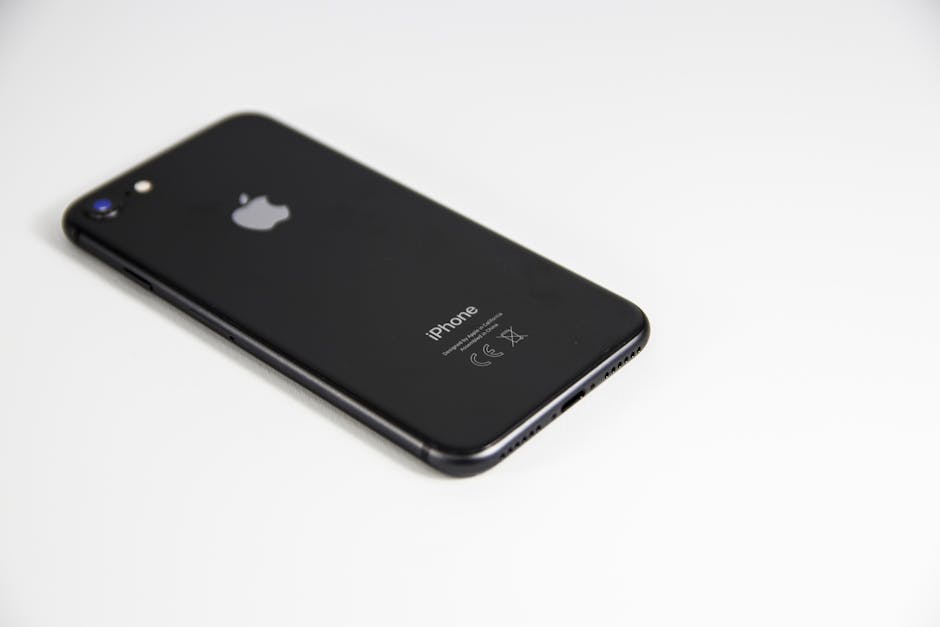
Imagine your iPhone screen is unresponsive, frozen, or completely black. You can’t swipe, tap, or interact with it in any way. Panic sets in – how do you even turn it off? Fortunately, Apple has built-in a hardware-based method to force restart or power off your iPhone, even when the touchscreen is completely unusable. This guide will walk you through the steps, ensuring you can regain control of your device.
Using the Force Restart Sequence (for Unresponsive Screens)
The force restart sequence is your primary method for powering off an iPhone when the screen is frozen or unresponsive. This process simulates disconnecting and reconnecting the battery, forcing the device to reboot. It’s generally safe and won’t erase your data. The exact button combination varies depending on your iPhone model.
iPhone 8, iPhone SE (2nd generation and later), iPhone X, iPhone XS, iPhone XR, iPhone 11, iPhone 12, iPhone 13, iPhone 14, and iPhone 15 Series:
This is the most common method for newer iPhones. Remember to perform the actions quickly.
- Press and quickly release the Volume Up button.
- Press and quickly release the Volume Down button.
- Press and hold the Side button (power button) until the Apple logo appears. This might take 10-20 seconds.
Once the Apple logo appears, release the Side button. Your iPhone will restart. If the screen was merely frozen, it should now be functioning normally.
iPhone 7 and iPhone 7 Plus:
For these models, the process differs slightly.
- Press and hold both the Side button (power button) and the Volume Down button simultaneously.
- Continue holding both buttons until the Apple logo appears.
- Release both buttons when you see the Apple logo.
iPhone 6s, iPhone SE (1st generation), and Older:
Older iPhones utilize the Home button for this process.
- Press and hold both the Side button (power button) and the Home button simultaneously.
- Continue holding both buttons until the Apple logo appears.
- Release both buttons when you see the Apple logo.
If the force restart was successful, your iPhone should power back on. If it remains unresponsive, proceed to the next troubleshooting step.
Entering Recovery Mode (If Force Restart Fails)
If a force restart doesn’t resolve the issue, entering Recovery Mode might be necessary. This allows you to restore your iPhone using a computer. Note: Restoring your iPhone in Recovery Mode might result in data loss if you don’t have a recent backup.
- Connect your iPhone to a computer using a Lightning or USB-C cable.
- Open Finder on a Mac running macOS Catalina or later, or iTunes on a Mac running macOS Mojave or earlier, or on a Windows PC.
- Put your iPhone into Recovery Mode: The steps vary depending on your model. Follow the appropriate instructions below.
iPhone 8, iPhone SE (2nd generation and later), iPhone X, iPhone XS, iPhone XR, iPhone 11, iPhone 12, iPhone 13, iPhone 14, and iPhone 15 Series: Press and quickly release the Volume Up button. Press and quickly release the Volume Down button. Press and hold the Side button until the Recovery Mode screen appears (showing a cable pointing to a computer). iPhone 7 and iPhone 7 Plus: Press and hold both the Side button and the Volume Down button simultaneously. Continue holding both buttons until the Recovery Mode screen appears. iPhone 6s, iPhone SE (1st generation), and Older: Press and hold both the Side button and the Home button simultaneously. Continue holding both buttons until the Recovery Mode screen appears.
- In Finder or iTunes, you’ll see a message indicating that your iPhone has been detected in Recovery Mode. You’ll be presented with options to “Update” or “Restore.”
Try “Update” first. This attempts to reinstall iOS without erasing your data. If the update fails, you’ll need to proceed with “Restore.” “Restore” will erase all data on your iPhone. Only choose this option if updating doesn’t work.
- Follow the on-screen instructions to complete the update or restore process.
DFU Mode: The Last Resort
DFU (Device Firmware Update) mode is the deepest type of restore you can perform on an iPhone. It allows you to restore your iPhone to a factory state, bypassing the bootloader. This is generally used as a last resort when Recovery Mode fails. Warning: DFU mode will erase all data on your iPhone.
- Connect your iPhone to a computer using a Lightning or USB-C cable.
- Open Finder on a Mac running macOS Catalina or later, or iTunes on a Mac running macOS Mojave or earlier, or on a Windows PC.
- Put your iPhone into DFU mode: The steps are complex and must be followed precisely.
iPhone 8, iPhone SE (2nd generation and later), iPhone X, iPhone XS, iPhone XR, iPhone 11, iPhone 12, iPhone 13, iPhone 14, and iPhone 15 Series: Press and quickly release the Volume Up button. Press and quickly release the Volume Down button. Press and hold the Side button for 10 seconds. While still holding the Side button, press and hold the Volume Down button for 5 seconds. Release the Side button but continue holding the Volume Down button for another 10 seconds. If the screen remains black, you’ve successfully entered DFU mode. If you see the Apple logo, you need to start over. iPhone 7 and iPhone 7 Plus: Press and hold both the Side button and the Volume Down button for 10 seconds. Release the Side button but continue holding the Volume Down button for another 5 seconds. If the screen remains black, you’ve successfully entered DFU mode. If you see the Apple logo, you need to start over. iPhone 6s, iPhone SE (1st generation), and Older: Press and hold both the Side button and the Home button for 10 seconds. Release the Side button but continue holding the Home button for another 5 seconds. If the screen remains black, you’ve successfully entered DFU mode. If you see the Apple logo, you need to start over.
- In Finder or iTunes, you’ll see a message indicating that your iPhone has been detected in Recovery Mode. It might say something like “iTunes has detected an iPhone in recovery mode. You must restore this iPhone before it can be used.” This is normal for DFU mode.
- Click “Restore” and follow the on-screen instructions.
Preventing Future Issues and Seeking Professional Help
While these methods can help you power off your iPhone without touching the screen, preventing future issues is crucial. Regularly backing up your iPhone to iCloud or a computer ensures that you can restore your data if something goes wrong.
Keep your iOS updated: Apple frequently releases updates that include bug fixes and performance improvements. Manage storage: Running out of storage space can cause your iPhone to slow down and become unresponsive. Close unused apps: Apps running in the background can consume resources and drain battery life.
- Avoid extreme temperatures: Exposing your iPhone to extreme heat or cold can damage the battery and other components.
If you’ve tried all of these methods and your iPhone is still unresponsive, it might be a hardware issue. Contact Apple Support or visit an authorized service provider for assistance. A damaged screen, faulty battery, or other internal component could be the cause.
Conclusion
Having an unresponsive iPhone can be incredibly frustrating, but knowing how to force restart, enter Recovery Mode, or use DFU mode can help you regain control. Remember to back up your device regularly to minimize data loss in case of emergencies. If all else fails, don’t hesitate to seek professional help to diagnose and repair any underlying hardware problems. Bookmark this guide for future reference, and share it with friends and family who might find it useful.